
What is paraphrasing and what does this Paraphrasing & Rewriting Tool do?
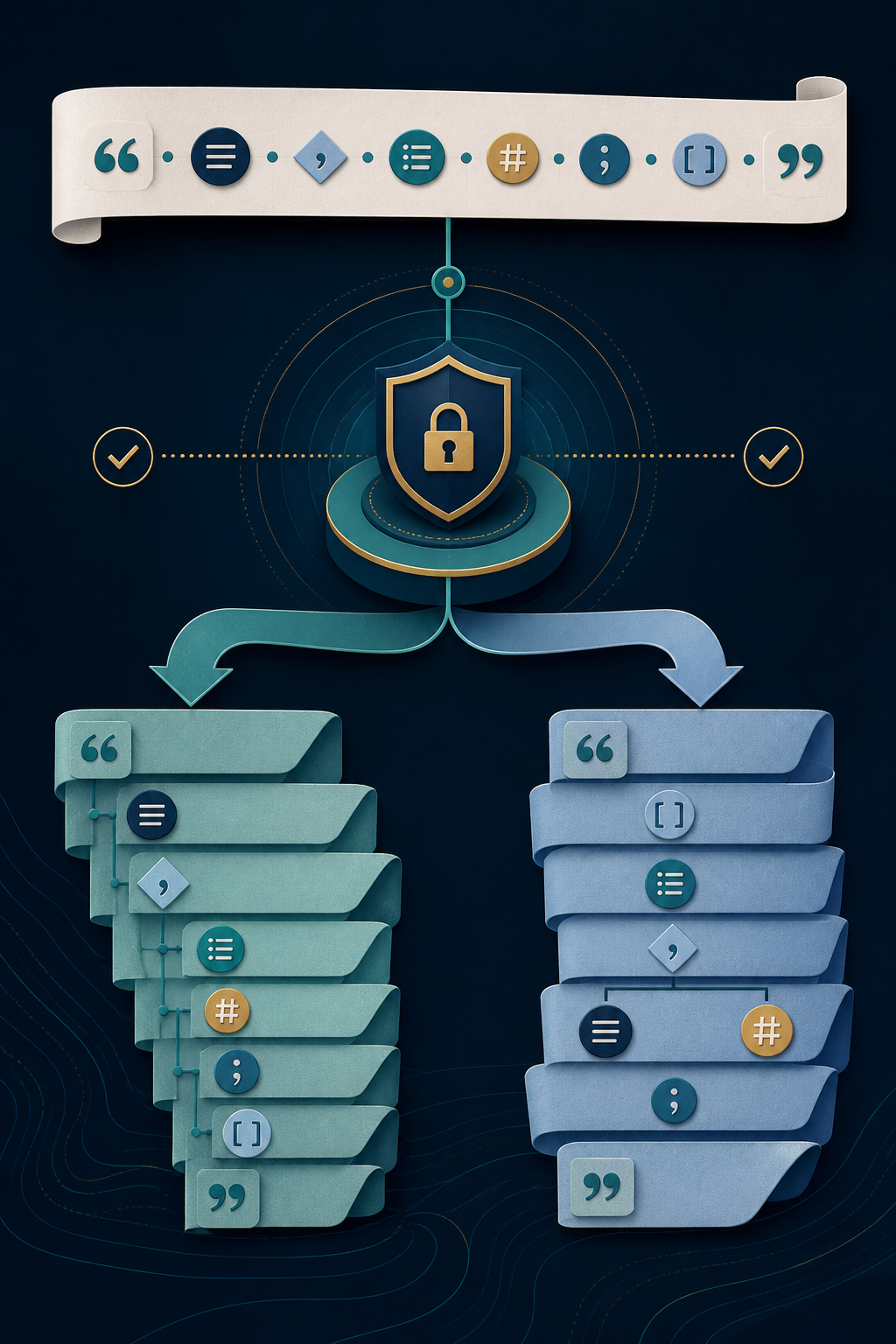
Paraphrasing restates an idea in genuinely new wording and structure while preserving the source meaning and acknowledging the source where required. This tool provides a narrow Local Safe path for tested mechanical edits and an optional AI-assisted path for deeper semantic rephrasing in six styles.
How to use Paraphrasing & Rewriting Tool
Enter up to 2,000 words and select a style.
Choose Local for conservative edits or an AI access mode for semantic paraphrasing.
Run the request explicitly, then inspect changes and protected-element warnings.
Accept or reject suitable suggestions, edit the output and retain appropriate attribution.
Key features
- Six style choices on one canonical page
- Local Safe editorial transformations
- Optional structured AI-assisted paraphrasing
- Editable output and sentence decisions
- Before-and-after diagnostics
- Citation, quotation and fact-preservation review
Input guide
Paste the complete passage with its citations and quotations intact. Academic mode changes style but does not create references. Use Local Safe when privacy or provider access matters more than broad rewording; it intentionally makes fewer changes than semantic AI assistance.
How to understand your results
Differences show changed wording; metrics show measurable changes in length, readability, sentence variation and repetition. Preservation warnings identify supported protected elements that changed. Paraphrasing does not make copied ideas yours or remove the need to cite a source.
Worked example
The survey found that 64% of readers preferred shorter instructions (Lee, 2024).
A responsible paraphrase can restructure the sentence, but 64% and the citation must remain. If either changes, the guard marks a potential factual change.
Common use cases
- Restate a source before adding proper attribution
- Improve clarity without summarizing away details
- Compare formal and friendly phrasing
- Reduce wordiness in a report or article
Paraphrasing & Rewriting Tool guidance and best practices
- Read the source, set it aside, then verify your paraphrase against it.
- Cite ideas and evidence even when every word changes.
- Keep quotations exact and clearly marked.
- Prefer precise wording over superficial synonym swaps.
Limitations, assumptions and cautions
- Local Safe mode is deliberately narrower than semantic paraphrasing.
- AI assistance can alter nuance or emphasis.
- A changed passage is not automatically plagiarism-free.
- The guard checks selected elements, not every aspect of meaning.
Privacy and processing
Local or explicit AI-assisted processing
Local Safe mode and analytics run in your browser. AI-assisted paraphrasing sends the submitted passage for processing only after you choose an AI access mode and run the tool.
Related tools
These live canonical tools support a useful adjacent task without duplicating this one.
Paraphrasing & Rewriting Tool FAQs
Clear guidance for choosing and using the catalogue responsibly.
What does the Paraphrasing Tool change?
It can change wording and sentence structure while aiming to retain the original claims, evidence, intent and source markers.
What is the difference between paraphrasing and rewriting?
Paraphrasing usually restates sourced ideas with attribution; rewriting is a broader editing term that can also apply to your own draft.
What do Simple, Fluent, Formal, Concise, Academic and Friendly modes do?
They set the requested style on one page; they do not change the requirement to preserve facts or cite sources.
How does the tool preserve numbers and citations?
It compares supported figures, dates, identifiers, quotations and citation markers and warns when the result differs.
Can Academic mode create references for me?
No. It must not invent a source, citation or DOI. Add only references you have verified.
What is the difference between Local Safe and AI-assisted paraphrasing?
Local Safe applies narrow deterministic edits; AI assistance can restructure meaning-bearing language and therefore needs more review.
Can I edit the paraphrased output?
Yes. The result is editable and its analysis updates after manual changes.
Is paraphrasing the same as summarizing?
No. Paraphrasing restates approximately the same content, while summarizing selects and condenses the central points.
Does AI-assisted paraphrasing send my text for external processing?
Yes. Local Safe does not; AI-assisted processing sends the text for the operation you request.
Is paraphrased material automatically plagiarism-free?
No. Source ideas still require attribution, and close structure or inadequate citation can remain problematic.